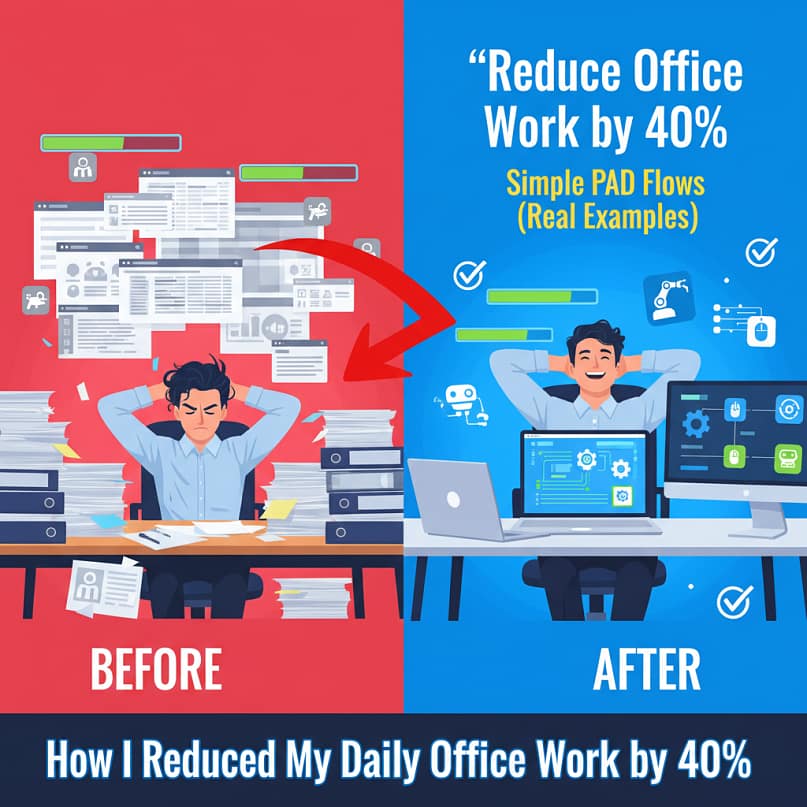
(A Complete Beginner-Friendly Guide With Real Office Automations)
If you’ve ever looked at your to-do list and thought, “There’s no way I can finish all this today…” — you’re not alone. For years, I felt the same. My job involved Excel files, Outlook emails, monthly reports, copy-paste work, data entry, downloading attachments, file renaming, and repetitive tasks that ate up hours.
But everything changed the day I discovered Power Automate Desktop.
After just one month of using simple PAD flows, I reduced almost 40% of my daily office work without learning coding or spending money.
And in this blog, I’ll show you exactly how I did it — with real examples, screenshots-style explanations, and flows you can copy today.
Before we start, here’s the promise:
By the end of this blog, you will know how to reduce office work using PAD flows, how to build automation even if you’re a complete beginner, and how to use Power Automate Desktop to save 1–3 hours every single day.
Let’s begin.
Why I Started Using Power Automate Desktop
Every evening, I used to finish work late because of manual tasks:
- Downloading Excel files
- Copying data between sheets
- Sending repetitive emails
- Moving files to folders
- Renaming 200+ files
- Creating daily reports
- Copying database export into an Excel format
These tasks looked small individually, but together they consumed 3–4 hours every day.
I had heard about automation before, but I thought it was only for programmers.
I was wrong.
Power Automate Desktop is extremely powerful, beginner-friendly, and built exactly for people like us — who want to automate office work easily.
Within 2 days, I created my first flow.Within 2 weeks, I automated 10+ tasks.Within 1 month, my daily workload reduced by 40%.
And here’s the best part — all automations were simple.
Why “Power Automate Desktop” Is the Best Tool for Office Automation
Before jumping to real examples, let’s quickly understand why power automate desktop became my daily partner.
Zero coding
You simply drag and drop actions.
Automates anything on Windows
Excel, Outlook, File Explorer, websites, PDFs, databases — everything is supported.
400+ built-in actions
From launching apps to scraping websites.
100% free
Yes, power automate desktop is completely free for Windows 10/11 users.
Reliable
My PAD flows run every single day without errors.
Because of all these advantages, power automate desktop became the center of my daily workflow automation.
Real Example #1: Automating Excel Reports (Saved 45 Minutes Daily)
My Before Situation
Every morning, I manually did:
- Open Excel report
- Paste data from another Excel sheet
- Apply filters
- Remove blanks
- Save as a new file
- Email it to my manager
This process took 40–45 minutes daily.
What I Did With Power Automate Desktop
I created a PAD flow that:
- Launched Excel
- Loaded the data file
- Copied the required table
- Cleaned the data
- Applied filters
- Created a final report
- Saved it with today’s date
- Sent an Outlook email automatically
Result
The entire task which earlier took 45 minutes now takes 0 minutes because power automate desktop completes it automatically while I enjoy my coffee.
Why This Helps You
If your work includes Excel, then you can automate:
- Salary sheet updates
- Attendance reports
- MIS reports
- Daily data cleaning
- File merging
- Data extraction
This is your first big step in learning how to reduce office work using PAD flows.
Real Example #2: Auto-Downloading Emails & Attachments From Outlook
My inbox receives 30–50 emails daily with attachments such as:
- PDFs
- Excel files
- Screenshots
- Invoices
Earlier, I manually downloaded each.
Now, power automate desktop:
- Opens Outlook
- Searches for specific keywords
- Downloads attachments
- Saves them in date-wise folders
- Renames them automatically
- Moves old attachments into an archive folder
This saved another 30 minutes daily.
Real Example #3: File Renaming + Organizing (Saved 20 Minutes Daily)
I often receive files like:
IMG_8354.jpg
Screenshot_20240512.png
Doc_01.pdf
I need them renamed like:
ClientName_Invoice_April_2025.pdf
DailyReport_12May2025.xlsx
With power automate desktop, I created a simple PAD flow:
- Reads file names
- Extracts date
- Applies my naming format
- Renames 200+ files instantly
This is a classic example of daily task automation using workflow automation.
Real Example #4: Web Scraping (Saved 1 Hour Weekly)
Using power automate desktop, I automated website data extraction:
- Logged into portal
- Downloaded data
- Extracted tables
- Triggered Excel macros
- Generated the weekly report
Tasks that earlier took 1 hour now take 5 minutes.
Let’s calculate real impact:
How Power Automate Desktop Reduced My Office Work by 40%
| Task | Before | After Using PAD Flows |
|---|---|---|
| Excel report creation | 45 min/day | 0 min/day |
| Email attachment download | 30 min/day | 2–3 min |
| File renaming | 20 min/day | 1 min |
| Web scraping | 1 hr/week | 5 min/week |
| Data entry | 1 hr/day | 5–10 min |
Total Time Saved:≈ 2–3 hours every single day≈ 40% of my total workload
All because of power automate desktop.
Real PAD Flows You Can Build Today (Beginner Friendly)
Below are step-by-step PAD flows for beginners.
Steps:
PAD Flow #1: Auto Merge Excel Files From a Folder
- Launch power automate desktop
- Add “Get files in folder”
- Loop through each file
- Read Excel data
- Append the data to master sheet
- Save final file
This is the most popular automate Excel task in offices.
PAD Flow #2: Website Auto Login
- Launch Chrome
- Navigate to URL
- Enter username
- Enter password
- Click login
With this flow, you save 5 minutes every day.
PAD Flow #3: Auto Email Generator
- Use Excel as data source
- Loop through rows
- Create Outlook email for each person
- Attach files
- Send automatically
Perfect workflow automation example.
My 5 Golden Rules for Using Power Automate Desktop
1. Start small
Automate 5-minute tasks first.
2. Build modular flows
Separate your emailing, Excel tasks, and file tasks.
3. Use error-handling
Your flow becomes professional.
4. Name every step
Makes debugging easier.
5. Document your flows
Even simple PAD flows need explanation if shared with team.
20 Tasks You Can Automate With Power Automate Desktop
- Copy-paste work
- File sorting
- Excel VLOOKUP automation
- Invoice downloading
- Website scraping
- Password resets
- Email replies
- Reminder notifications
- Ticket updates
- Folder creation
- PDF text extraction
- OCR reading
- Report generation
- Outlook rules
- Data formatting
- File splitting
- Merging CSV files
- PowerPoint automation
- Copying data across systems
- Uploading documents to portals
Any task that repeats daily is perfect for power automate desktop.
Why Power Automate Desktop Is the Future of Office Productivity
Companies are now training employees on:
- pad flows
- power automate examples
- automate office work
- daily task automation
- productivity automation
Because automation saves time, reduces errors, and increases performance.
And the best part?
ANYONE can learn it.
How You Can Start Today (Even If You’re New)
Step 1: Install Power Automate Desktop
It’s free from Microsoft Store.
Step 2: Start with 1 small automation
Example: File renaming.
Step 3: Learn Excel automation
PAD + Excel = massive time savings.
Step 4: Learn web automation
Automate portals and websites.
Step 5: Build daily PAD flows
Create flows for every repetitive task.
If you do this consistently for one month, your daily workload will drop drastically.
Final Thoughts: Yes, You Can Reduce 40% of Your Work
If I can reduce my daily office work by 40% using power automate desktop, then you can too.
Automation is not the future — it is the present.
With simple PAD flows, you can automate everything:
- Emails
- Excel
- Reports
- File management
- Data entry
- Web portals
And with every automation, you save minutes — which eventually becomes hours.
This is exactly how to reduce office work using PAD flows and transform your career.








Sup guys! I checked out ae888fan25 and it's pretty good. The layout is pretty clean easy to navigate! I like that it's something new... give it a shot!