Introduction
If you’ve ever spent hours cleaning Excel sheets using copy-paste, filters, and helper columns, you’re not alone. Most Excel users still work the “old way” without realizing Excel has quietly changed how formulas work. Excel dynamic arrays are one of the biggest upgrades in modern Excel, but many beginners and office workers either don’t understand them or avoid them out of fear.
The real problem is this: traditional formulas return one result, but real-world data needs flexible, automatic results that update instantly. That’s where excel dynamic arrays completely change the game. Instead of dragging formulas down manually, Excel now spills results automatically.
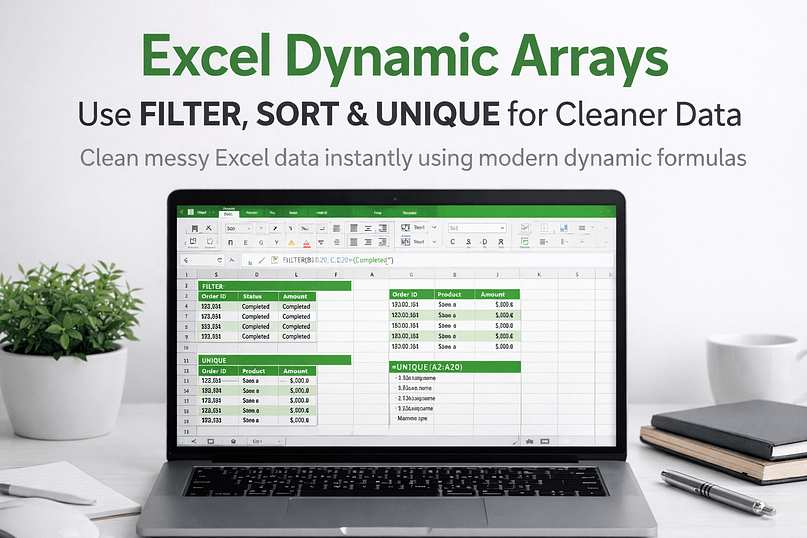
In this guide, you’ll learn exactly how to use FILTER, SORT, and UNIQUE to clean data easily—even if you’re not an Excel expert. By the end, you’ll confidently handle messy data using excel dynamic array formulas without stress.
Why Most People Struggle With Excel Dynamic Arrays
Most users struggle with this topic because Excel changed—but their habits didn’t.
Here are the most common reasons:
- They still rely on manual filters and copy-paste
- They don’t understand what “spilled results” mean
- They think formulas returning multiple values are errors
- They mix old Excel functions with dynamic arrays incorrectly
- They fear breaking existing spreadsheets
Another big issue is confusion around what are dynamic arrays in excel and when to use them. Many tutorials jump straight into formulas without explaining why they matter. As a result, users memorize formulas but don’t truly understand how excel data cleaning becomes easier with them.
What You Need Before Starting
Before using excel dynamic arrays, make sure you have the basics covered.
Requirements
- Microsoft Excel 365 or Excel 2021 (older versions do not support dynamic arrays)
- Basic understanding of Excel cells, rows, and columns
- A sample dataset (sales, attendance, employee list, etc.)
No Advanced Skills Needed
You do not need:
- VBA
- Macros
- Power Query
- Advanced Excel knowledge
If you can write a basic formula like =SUM(A1:A10), you’re ready.
Step-by-Step Guide to Solve the Problem
Let’s break this down into simple steps using the three most powerful excel dynamic array formulas: FILTER, SORT, and UNIQUE.
Step 1: Understand Dynamic Arrays (Very Important)
A dynamic array returns multiple values automatically into neighboring cells.
Example:
=UNIQUE(A2:A20)
Excel automatically “spills” results down without dragging.
Key rule:
- Never type anything in the spill range
- Excel controls the output area
This is the foundation of excel dynamic arrays.
Step 2: How to Use FILTER Function in Excel
The excel filter function allows you to extract data based on conditions—without using Excel’s filter button.
Basic Syntax
=FILTER(array, include, [if_empty])
Example
You have sales data and want only “Completed” orders:
=FILTER(A2:D50, D2:D50="Completed")
Why this is powerful:
- Automatically updates when data changes
- No hidden rows
- Perfect for dashboards
This is the cleanest way to handle excel data cleaning.
Step 3: How to Use SORT Function in Excel
The excel sort function sorts data dynamically.
Basic Syntax
=SORT(array, [sort_index], [sort_order])
Example
Sort sales data by amount (highest first):
=SORT(A2:D50, 3, -1)
Benefits:
- No manual sorting
- Always stays sorted
- Works perfectly with dynamic arrays
If your data updates daily, this alone can save hours.
Step 4: How to Use UNIQUE Function in Excel
The excel unique function extracts distinct values automatically.
Basic Syntax
=UNIQUE(array)
Example
Get unique customer names:
=UNIQUE(B2:B100)
Use cases:
- Remove duplicates
- Create dropdown lists
- Generate reports
This replaces complex formulas and helper columns.
Step 5: How to Use FILTER and UNIQUE Together in Excel
This is where excel dynamic arrays truly shine.
Example
Get unique customer names where status = “Active”:
=UNIQUE(FILTER(A2:A100, B2:B100="Active"))
This single formula replaces:
- Advanced filters
- Pivot tables (in many cases)
- Manual cleanup
Once you master this, Excel feels completely different.
Real-Life / Office / Practical Example
Scenario: Office Attendance Report
Imagine you manage attendance for 200 employees.
Your tasks:
- Show only “Present” employees
- Remove duplicate names
- Sort alphabetically
Old method:
- Apply filters
- Copy data
- Remove duplicates
- Sort manually
- Repeat daily
Dynamic array solution:
=SORT(UNIQUE(FILTER(A2:A500, B2:B500="Present")))
Results:
- Auto-updated list
- Zero manual work
- No errors
- Clean reports every day
This is how professionals use excel dynamic arrays in real offices.
Common Mistakes and How to Fix Them
Here are mistakes I see daily—and how to fix them.
- Spill error (#SPILL!)
- Fix: Clear cells where Excel wants to spill results
- Using dynamic arrays in unsupported Excel versions
- Fix: Upgrade to Excel 365 or Excel 2021
- Hardcoding values instead of references
- Fix: Always use cell ranges
- Mixing old formulas like VLOOKUP unnecessarily
- Fix: Replace with dynamic array logic
- Over-nesting formulas
- Fix: Keep formulas readable and simple
Avoid these and your Excel work becomes stress-free.
FAQs (Very Important for SEO)
What are dynamic arrays in Excel?
Dynamic arrays allow formulas to return multiple results automatically into cells without dragging formulas.
How to use filter function in Excel for beginners?
Use =FILTER(range, condition) to extract data based on rules. It updates automatically.
How to use sort function in Excel dynamically?
Use =SORT(range, column, order) to keep data sorted even when new data is added.
How to use unique function in Excel to remove duplicates?
Use =UNIQUE(range) to instantly extract distinct values from a list.
Can I use excel dynamic arrays for data cleaning?
Yes. They are one of the best tools for excel data cleaning, reporting, and automation.
Conclusion
If Excel feels slow, repetitive, or frustrating, the problem isn’t you—it’s outdated methods. Excel dynamic arrays completely change how data works by removing manual steps and errors.
By learning FILTER, SORT, and UNIQUE, you can:
- Clean data faster
- Build smarter reports
- Reduce mistakes
- Save hours every week
Start small. Apply one formula today. Once you experience the power of excel dynamic arrays, you’ll never go back.
If you found this helpful, explore more practical Excel and automation guides on WebPlayX.com and take your productivity to the next level.